Match the angle
A clear, well-lit portrait works best when its angle is close to the face in your GIF.
Create a GIF face swap from a favorite reaction or your own animation. Choose a template, add a clear portrait, then generate and download your loop. Free to use, with no account required.
Choose a replacement for each person you want to change. Leave a slot empty to keep the original face.
AI processing by Crun.
Save your result before its temporary link expires.
AI-edited media. Please label it when sharing could be misleading.
Pick a scene below, or upload your own GIF.

The free trial does not need an account. Sign in to buy credits.
Use the same email if you already have an account.
By continuing, you agree to our Terms and Privacy Policy.
Your animated reaction turns a funny expression, celebration or classic reaction into your own version. Choose a template, add a clear portrait and generate your loop. Start with a scene where the face stays visible through most of the movement.
The GIF supplies the scene and movement. Your photo supplies the face.
Choose a GIF ↗
For a group animation, switch to Multiple faces and choose a group template. Match a different portrait to each person, or change just one face and leave the other slots empty. You do not need a replacement for everyone in the scene.
Have your own group GIF? Upload it and select Detect faces to find the people you can replace.
Try multiple faces ↗
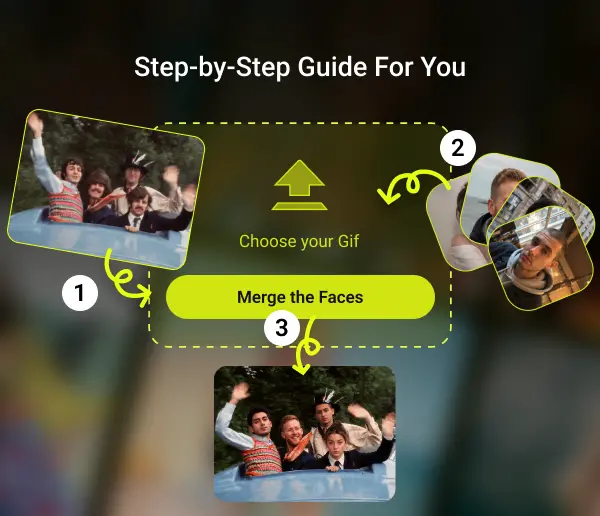
Pick a template or upload an animated GIF up to 20 MB.
Use one clear portrait for Single face. In Multiple faces, match portraits to the people you want to change.
Watch the finished loop, check the faces as they move, then save your result.
Built-in group templates load prepared face slots when selected. Add a portrait to the person you want to change and check the next-step message before generating. Switching the scene can change which faces are available, so review the assignments again.
For your own animation, upload the GIF in Multiple faces mode and select Detect faces. Wait for the face slots, then add your replacement portraits. If a person is missing, try a scene with a larger, more visible face and less motion blur. Detection does not guarantee that every person in every frame can be replaced.
For a cleaner result, choose a short loop with steady lighting. Compare the angle of your portrait with the animated subject. A sharp source helps more than enlarging a small or heavily compressed image.
After generation, watch the entire loop at normal speed. Look for changes around the eyes, mouth and jaw, especially during head turns. Download the result before its temporary link expires, and use media and portraits you have permission to edit.
A clear, well-lit portrait works best when its angle is close to the face in your GIF.
Steady motion and visible faces give you a better starting point than fast cuts or covered faces.
Check the eyes, mouth and jaw as the GIF plays. A good first frame does not guarantee a smooth loop.
Yes. Choose a GIF and a clear portrait, then select Generate. In Multiple faces, choose a template to see its face slots, or upload your own GIF and select Detect faces.
Yes. You can generate and download GIF face swaps for free without an account or software installation. Usage limits apply.
The site does not add its own watermark. Inspect the returned provider output before using it; the site does not promise particular provider output properties for every mode.
The GIF workflow generates an animated result. Preview the full output loop before downloading; motion and face consistency depend on your source GIF and portrait.
The workspace accepts GIFs up to 20 MB. Processing also depends on provider limits and the estimated cost; a large or long animation may exceed the free allowance.
Yes. Choose an animation and portrait through your mobile browser. Large animations may use significant memory; a shorter, smaller loop is easier to inspect.
For your replacement portrait, use one clearly visible face, even lighting and an angle close to the animated subject. Avoid heavy filters, covered features and very small images. A neutral portrait is a useful starting point, even when the animation has an expressive reaction.