Match the angle
A clear, well-lit portrait works best when its angle is close to the face in your video.
Create a face swap video with a short clip or a ready-made template. Add your portraits, generate and download the result. Free to use, with no account required.
Trim locally before uploading. Start with 5–15 seconds; up to 30 seconds per selection. Changing the clip clears face assignments.
Save prepared clip ↓Choose a replacement for each person you want to change. Leave a slot empty to keep the original face.
AI processing by Crun.
Save your result before its temporary link expires.
AI-edited media. Please label it when sharing could be misleading.
Pick a scene below, or upload your own video.

The free trial does not need an account. Sign in to buy credits.
Use the same email if you already have an account.
By continuing, you agree to our Terms and Privacy Policy.
Start your edited clip with a short template or your own clip. Add a clear portrait and create a new version of the scene. The original supplies the setting and movement; your portrait supplies the replacement face.
Preview the original, choose your time range and apply the clip before generating. Start with 5–15 seconds of steady movement.
Choose a video ↗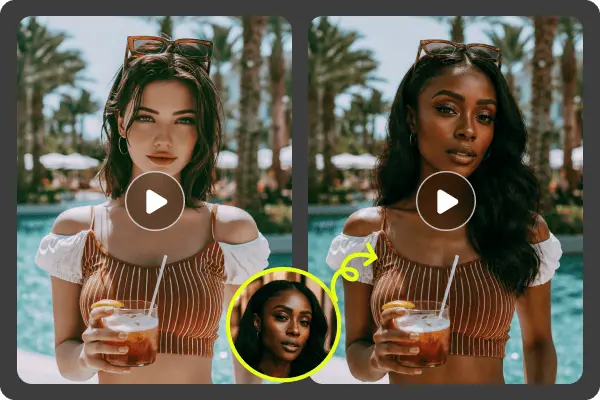
For a group video, switch to Multiple faces and choose a group template. Match a different portrait to each person, or change just one face and leave the other slots empty. Built-in group templates load prepared face slots so you can start assigning portraits.
Have your own group video? Upload it and select Detect faces to find the people you can replace.
Try multiple faces ↗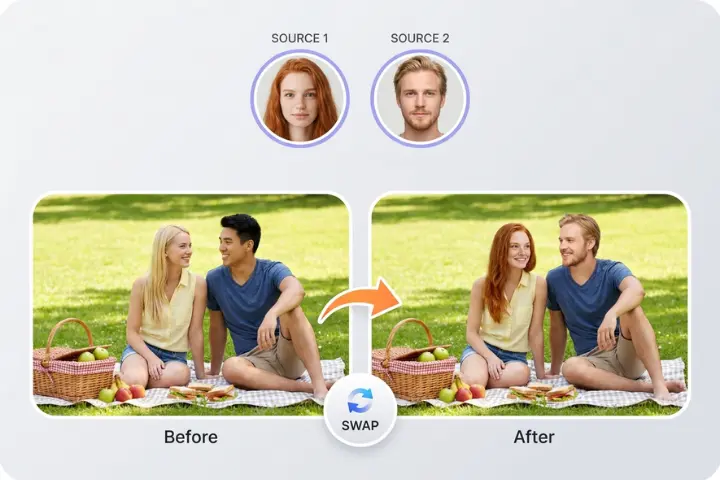
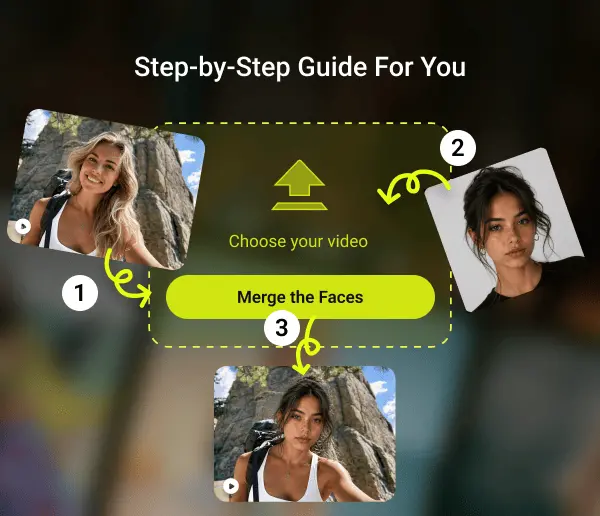
Upload your video as an MP4 or WebM clip up to 25 MB, or pick a template. Apply a shorter range if needed; trimming changes the file used for detection. Detect faces again after changing a group clip.
Use one clear portrait for Single face. In Multiple faces, match portraits to the people you want to change.
Watch the finished clip, check the faces as they move, then save your result.
Start with 5–15 seconds of steady movement and visible faces. You can select up to 30 seconds in the trimming controls, but that is a selection limit, not a guarantee that every clip fits the free processing allowance. A shorter clip may be needed.
For a better result, choose portraits with similar angles and even lighting. Fast cuts, covered faces and tiny subjects make matching harder. Watch the finished clip from beginning to end, checking the eyes, jaw, sound and timing. Download it before the temporary result link expires.
A clear, well-lit portrait works best when its angle is close to the face in your video.
Steady motion and visible faces give you a better starting point than fast cuts or covered faces.
Check the eyes, mouth and jaw as the video plays. Check the sound and timing before sharing.
Choose Single face or Multiple faces, then pick a template or upload a video. Apply a shorter clip if needed. Add your replacement portraits and select Generate.
Yes. Video face swap is free to use without an account. Daily usage and per-job limits apply. Try a shorter clip if your video exceeds the processing limit.
MP4 and WebM files up to 25 MB. Playback and trimming depend on your browser and the codecs inside the file. Convert unsupported MOV or HEVC footage to H.264 MP4 first.
Set the start and end times, then select Use this clip. Your browser prepares an actual shorter video before it is uploaded. Selections can be up to 30 seconds, but processing still depends on the available allowance. If trimming is unsupported, use your device’s photo editor.
Yes. Choose Multiple faces, then add portraits only to the people you want to change. Leave the other face slots empty. Built-in group templates load prepared face slots; custom uploads and newly trimmed clips need a new face scan.
Local trimming checks that an input audio track is retained. The swap provider controls the final rendered output, so review the downloaded video for sound and timing before sharing.
Your current processing job is saved in this browser tab. Return and select Check job status. Local files and unfinished face assignments are not saved across reloads. Download completed results before their temporary links expire.